


Your teacher has started a Blooket game, everyone else is joining, and you are still staring at the screen wondering where to enter the code. Don’t worry—the process is simple once you know where to go. You can usually join a Blooket game with a code in under 30 seconds if you have a working game ID, a stable internet connection, and the correct joining page. Here is exactly how to do it.
Quick Summary: Join Blooket in Seconds
- Official website: Blooket.com
- Joining page: Play Blooket
- What you need: A valid game ID, a host’s link, or a QR code.
- Account required? Students can generally join hosted games without creating an account.
- Basic process: Open the joining page, enter the code, choose a permitted nickname, and join.
- If it fails: Check the code, confirm the game is still active, and ask the host for updated joining details.
How to Join a Blooket Game With a Code
Follow these steps when your teacher or game host shares a Blooket game code.
Step 1: Open the Blooket Joining Page
Open a browser on your computer, Chromebook, tablet, or phone. Visit play.blooket.com.
Using the official joining page is the easiest way to avoid confusing a legitimate game with an unofficial website. You do not normally need to download an app just to join a browser-based game.
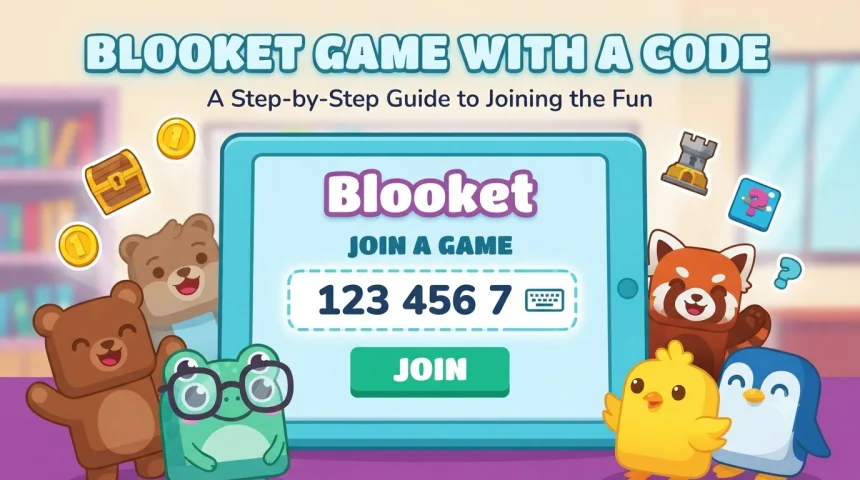
Step 2: Enter Your Blooket Game Code
Ask your teacher or host for the game ID. Enter the code in the field provided on the joining page, then continue.
Double-check the digits before submitting. A single incorrect number can prevent you from reaching the correct session. If the host has shared a direct game link, opening that link may take you straight to the appropriate joining screen.
Step 3: Choose Your Nickname
Depending on the host’s settings, you may be asked to enter a nickname or select from the available options. Choose a name that your teacher can recognize.
Some sessions restrict nicknames or use other host-controlled settings. If your preferred name is rejected, follow the instructions displayed on the screen rather than repeatedly submitting the same name.
Step 4: Join the Game and Wait
After entering the required information, complete the joining process and wait for the host to begin the session if it has not started yet.
Once the game starts, read the instructions for the selected mode. Blooket includes different activities, so the way you earn points or progress through a round depends on the game your teacher chose.
That’s it. If you already have the code and the session is open, joining should take only a few moments.
What Is a Blooket Game Code?
A Blooket game code, often called a game ID, identifies a particular hosted game session. It allows participants to reach the correct session without searching for the question set themselves.
The code is usually supplied by the person hosting the game. In a classroom, that is often the teacher, who displays the joining information on a projector or shares it through a learning platform.
Where Can You Find a Blooket Join Code?
You can usually get the code from one of these places:
- Classroom screen: Your teacher may display the game ID while hosting a live session.
- Teacher’s message: The code may be shared through your school’s learning platform or class group.
- Direct joining link: Opening a link from the host may take you to the game without manually entering an ID.
- QR code: Some hosts provide a QR code that you can scan with a compatible device.
There is no single permanent Blooket code that works for every game. Game IDs are associated with individual sessions, so a code from an old classroom activity may no longer work.
If you find a code on a random website, don’t assume it will let you enter a live game. Ask the host for the current code instead.
Why Is My Blooket Game Code Not Working?
Sometimes the joining process takes longer than expected. Usually, the problem is related to the code, the session, the browser, or the host’s settings.
1. The Game Code Is Incorrect
This is the first thing to check. Compare the number you entered with the code displayed by your teacher. Re-enter it carefully if necessary.
If the code was copied from a message, make sure you have not included an extra space or missed a digit.
2. The Game Has Ended
A code from a completed or closed session may no longer allow you to join. Ask the host whether the game is still active and request a new code if they have started another session.
Avoid repeatedly trying an old ID when the teacher has already moved on to a different activity.
3. The Host Has Changed the Settings
Some games have restrictions on participation, nicknames, or when players can enter. If the joining page accepts the code but you cannot proceed, ask the host to check the session settings.
The problem may not be on your device at all.
4. Your Browser or Internet Connection Is Causing Problems
If the code appears correct and the session is active, try these basic troubleshooting steps:
- Refresh the joining page.
- Check that your internet connection is working.
- Open the official joining page in another supported browser.
- Temporarily disable a browser extension if it appears to interfere with the page.
- Try again using the current link or code supplied by the host.
If Blooket itself is experiencing a service issue, changing browsers may not help. Give the service a little time and check the official Blooket website before attempting more complicated fixes.
Can You Join Blooket Without Logging In?
Yes, students can generally participate in hosted Blooket games without signing in to a personal account. This is useful in classrooms where a teacher wants everyone to join quickly without asking each student to register first.
You will still need valid joining details and must follow any restrictions set by the host. Some account features, such as tracking personal progress or managing a collection, may require you to sign in.
Can You Join Blooket on a Phone?
Yes. You can generally use a compatible mobile browser to open the joining page and enter a game ID. The exact experience may vary depending on the device, browser, and session settings.
If you are using a phone, keep the joining page open while the game loads. A stable Wi-Fi or mobile data connection can help prevent interruptions.
Can You Join Blooket Without a Code?
You may be able to join through a valid direct game link or QR code supplied by the host. These options can take you to the correct session without manually typing the game ID.
However, you still need access to an active game or assignment. Simply opening Blooket does not automatically place you into a random live classroom session.
Frequently Asked Questions
Where do I enter a Blooket game code?
Visit play.blooket.com, enter the game ID in the provided field, and follow the on-screen instructions. You may then need to choose a nickname before entering the session.
Do Blooket codes expire?
A game ID is tied to a hosted session, so it may stop working when that session ends or becomes unavailable. If your code fails, ask the host whether the game is still open.
Can I join a Blooket game late?
That depends on the host’s settings and whether the session is still accepting participants. Try entering the current code, and ask your teacher if late joining is disabled or the game has ended.
Is Blooket free to join for students?
Students can generally join hosted games without paying for a subscription or creating an account. Some additional platform features are tied to accounts or paid plans, so check Blooket’s official information for current details.
Conclusion
Joining a Blooket game is straightforward: open the official joining page, enter the game ID, choose an allowed nickname, and follow the prompts. With the correct code ready, you can often get into a session in under 30 seconds.
If something goes wrong, check the code and confirm that the host is still running the game before troubleshooting your device. The quickest fix is often simply getting the latest joining details from your teacher.